

Quick answer: If you are wondering how to change color of clothes in a photo, there are four real ways to do so: a dedicated AI color changer, a manual photo editor like Photoshop, a general design app like Canva, or vector software like Illustrator for flat sketches. AI wins on speed and texture accuracy, since it skips manual masking and handles fabric, shadow, and drape automatically, in seconds instead of minutes per image.
Every fashion, clothing, or ecommerce brand runs into the same problem. One garment in five colors needs several images per color before it can go live. Do that across a full season, and "change the color of clothes in this photo" turns into a real production bottleneck.
This guide covers four real ways to change clothing color in a photo. You'll also see where each method breaks down at scale, and what it takes to keep texture and fabric detail accurate once the color changes. Here's how the four options compare at a glance:
Type | Example Tools | Best For |
|---|---|---|
Dedicated AI color changer | Modelia | Ecommerce catalogs, lookbooks, batch colorways |
Manual photo editor | Adobe Photoshop | Precise, pixel-level control on a single image |
General design apps | Canva | Quick social posts or one-off casual edits |
Vector or design software | Adobe Illustrator | Flat fashion sketches, not photos |
What Does It Mean to Change the Color of Clothes in a Photo?
Changing the color of clothes in a photo means digitally altering the hue of a garment in an existing image, without reshooting the product. The original fabric texture, folds, shadows, and fit stay intact. Only the color shifts.
This is different from designing a new colorway on paper. You're not creating a new product spec. You're generating a photo-ready visual of a colorway that already exists in your line sheet, or one you're testing before committing to production.
For a fashion brand, this task shows up constantly: a dress that ships in six colors but was only sampled and shot in one, a retailer running seasonal color tests before reordering fabric, or a marketing team that needs a campaign image in three brand colors by Friday.
Why Changing Clothing Color at Scale Is a Real Bottleneck for Fashion Brands
A single photoshoot rarely covers every colorway a brand sells. Sample production, studio time, and model bookings all cost money per color, so most teams shoot one or two colors and hope the rest can be handled in post-production or skipped entirely.
That shortcut has a cost. Baymard Institute's research found that up to 12% of ecommerce search queries include a color keyword, and shoppers judge product pages heavily on how accurately color is represented. When a product photo doesn't match the color a customer expects, the result is a return, not a sale.
Returns tied to inaccurate imagery are avoidable, and the cost is real. Shopify's own ecommerce returns research points to messy or missing product data, including wrong colors, as a direct cause of immediate returns, since a customer who orders one shade and receives another rarely gives the brand a second chance. For a catalog running hundreds of SKUs, that adds up fast.
This is exactly the gap AI-powered ecommerce imagery is built to close: generating every colorway your catalog needs without a reshoot for each one. And the incentive to solve it is growing. McKinsey estimates that generative AI could add $150 billion to $275 billion to apparel, fashion, and luxury operating profits over the next three to five years, much of it coming from exactly this kind of production efficiency.
For a deeper look at where photoshoot costs actually go before AI enters the picture, see the real cost of AI fashion model generation for brands.
4 Ways to Change the Color of Clothes in a Photo
There are four real categories of tools for this job, and they're built for different jobs. Here's how they compare, fastest to most manual.
Dedicated AI Tools (Fastest)
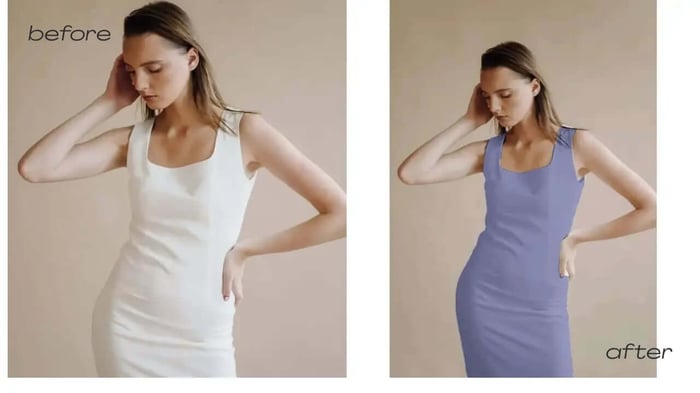 How to change the color of clothes with AI: before and after turning a white dress into blue in seconds, no reshoot required.
Purpose-built AI recoloring tools remove the manual masking step entirely. Instead of drawing a selection by hand, the AI detects the garment automatically and applies the new color while preserving texture, shadow, and drape.
Modelia's clothing recolor tool is built specifically for this job in a fashion context, not general photo editing. The workflow looks like this:
Upload your image. Start with a clear, well-lit photo of the garment, whether it's a flatlay, ghost mannequin, or on-model shot.
Select what to recolor. Choose the specific item, or a specific area of a patterned garment, that needs a new color.
Apply the new color. Pick the exact shade you want, matched to your brand's color codes if you're working from a palette.
Generate and download. The tool renders the updated image in seconds, ready for your product page, ads, or lookbook.
The result keeps fabric texture, folds, and lighting intact, which is the detail that makes a recolored image look real instead of like a flat color overlay. For a garment with a print or pattern, the tool can recolor a section without disturbing the rest of the design, which matters for anything beyond a solid color tee.
The time difference compounds across a catalog. What takes 15 minutes per image with manual editing takes seconds per image here, and that math is what makes recoloring an entire seasonal collection realistic instead of a slow crawl through a production queue.
Manual Photo Editor (Most Precise Control)
Adobe Photoshop is the main tool here, and manual masking is the traditional route:
Duplicate the layer. Keep your original image untouched in case you need to start over.
Select the garment. Use Quick Selection or Select Subject to isolate the clothing from the background.
Refine the mask. Clean up edges around sleeves, collars, and seams so the selection doesn't bleed into skin or background.
Open Hue/Saturation. Adjust Hue to shift the color, then use Saturation and Lightness to match the fabric's original shading.
Check for color spill. Zoom in around edges and shadows, since masking errors show up most in these areas.
A skilled editor can spend 10 to 20 minutes per image with this method. That's manageable for a single hero shot or a one-off campaign asset. It stops being manageable once you're recoloring the same garment into five or six colorways, then repeating that for every SKU in a collection.
Newer versions of Photoshop also include Generative Fill, an AI-assisted option built into the software itself. Instead of manually adjusting sliders, you select the garment and type a text prompt describing the color or material you want, and Photoshop generates the result. It's faster than manual masking and can help with tricky textures, but it's still one image at a time, and results can vary between generations.
General Design Apps (Quick, Casual Edits)
Tools like Canva include a brush-and-prompt recoloring feature (Canva calls it Magic Edit) that can shift a garment's color with a text description. It's built for quick social or marketing graphics, not for the pixel-level consistency a product listing or lookbook needs, and results can vary between attempts.
Here's how it works in Canva:
Open your photo and select Magic Edit. Upload the image, click Edit in the toolbar, then choose Magic Edit under Tools.
Select the garment. Brush over the item you want to recolor, or click directly on it to select it.
Describe the color change. Type a short prompt like "change the jacket to navy blue" and hit Generate.
Review the result. Output can come back with the wrong shade, a mismatched light direction, or a pixelated patch where the edit happened, so expect to regenerate a few times to get a usable result.
This works fine for a single, casual image. It doesn't hold up once you need consistent results across a full set of product pages, lookbook shots, or ad creative.
Vector or Design Software (For Flat Fashion Sketches)
If you're working from a flat fashion sketch or a vector mockup rather than a photograph, tools like Adobe Illustrator are the right category entirely, since they handle color at the design-file level rather than the photo level. That's a different job from recoloring a photo of a finished garment.
Here's how it works in Illustrator:
Select the artwork. Click the sketch or garment shape you want to recolor, or select everything with Command/Control + A.
Open Recolor Artwork. Go to Edit, then Edit Colors, then Recolor Artwork. This opens a panel showing every color currently used in the artwork.
Adjust the colors. Drag a color node on the wheel, double-click it to open the Color Picker, or choose a saved color library to apply a full palette at once.
Lock any colors you want to keep. Click the padlock icon next to a color stop if part of the sketch, like a logo or trim detail, should stay unchanged while everything else updates.
Apply and export. Confirm the changes and export the file in whatever format your next step needs, whether that's a spec sheet, a tech pack, or a print-ready file.
This is the right tool if you're still working in the design phase, before a garment exists as a physical sample or a photograph. It's not a substitute for recoloring a real product photo once the piece has been made and shot.
For a one-off personal edit, general apps or Photoshop will do. For anything you're publishing at volume, whether that's a product page, a seasonal lookbook, or a paid ad set, a dedicated fashion AI recoloring tool is built for that job in a way general apps aren't.
How to Change Dress Color and Other Garment Types Without Losing Texture
Not every garment recolors the same way, and this is where quality separates a usable catalog image from one that needs another round of edits.
Solid, smooth fabrics like a cotton dress or a plain shirt are the easiest case. The AI has a clean surface to work with and fewer edges to track. Patterned, textured, or highly reflective fabrics are harder. Sequins, ribbed knits, and busy prints can confuse a recoloring tool if the original image is low resolution or poorly lit.
A few things improve accuracy across garment types:
Start with a high-resolution, well-lit source image. Blurry or shadowy originals cause color spillover into skin or background.
Recolor solid-colored items first if you're testing a new tool, since results are most predictable there.
Check the output at full zoom, not just the thumbnail. Fabric texture and stitching are where errors hide.
For patterned garments, confirm the tool can target a specific section rather than recoloring the whole print uniformly.
This is also where color accuracy connects directly to your return rate. A dress that photographs as "true red" but arrives as "orange-red" creates the exact mismatch that drives avoidable returns. For a full breakdown of how fit and imagery accuracy affect return rates, see how to reduce ecommerce returns with AI garment fit tools.
Frequently Asked Questions About How to Change Color of Clothes
Can I change the color of clothes without Photoshop?
Yes. AI-based recoloring tools handle the same task without requiring manual masking, layer work, or editing software experience. You upload an image, select the garment with a few clicks, choose a new color, and generate the result. There's no drawing a selection by hand or building a layer mask.
Does changing clothing color with AI affect the fabric texture?
A well-built AI color changer preserves texture, shadow, and stitching detail while shifting only the hue. Lower-quality tools sometimes flatten these details, so it's worth checking output at full zoom before publishing.
What's the difference between recoloring one photo and recoloring a full catalog?
A single photo is a quick edit regardless of method. A full catalog means recoloring the same garment across every colorway, then repeating that for every SKU, which is where manual editing becomes impractical and batch AI tools become necessary.
Can AI change the color of patterned or multi-colored clothing?
Yes, though results vary by tool. Look for a color changer that lets you target a specific section of a garment, such as a collar or trim, rather than recoloring the entire print as one flat color.
How does changing clothing color affect ecommerce return rates?
Inaccurate color representation is a documented driver of returns, since customers who receive a different shade than what they saw online are unlikely to keep the item. Accurate recoloring reduces that mismatch by keeping the photo true to the actual product color.
Is AI clothing recoloring accurate enough for professional ecommerce listings?
Yes, when the tool is built for fashion rather than general photo editing. Modelia's AI-powered clothing recolor tool is built specifically for fashion brands, preserving fabric texture, shadow, and drape at commercial quality instead of flattening the garment into a color overlay. Image quality still depends on the resolution and lighting of the original source photo, so starting with a clean, well-lit image gives the most reliable result.
The Bottom Line for Brands Managing Multiple Colorways
If your team is still reshooting or manually editing every colorway, you're spending time and budget on a problem AI has already solved. Start with accurate fit and texture preservation, build in the scale to cover a full catalog instead of a handful of hero shots, and confirm the cost savings against what your current photoshoot cycle actually runs. That combination, not the recoloring trick alone, is what turns color variants into a repeatable part of your production pipeline instead of a recurring fire drill.


